Activate this automation on N8nPort with one click
We have completed the workflow installation, node configuration, and setup for you, so the automation is ready to activate without a manual import or node-by-node configuration.
Quick answers
How can I automate invoice data entry from emails?
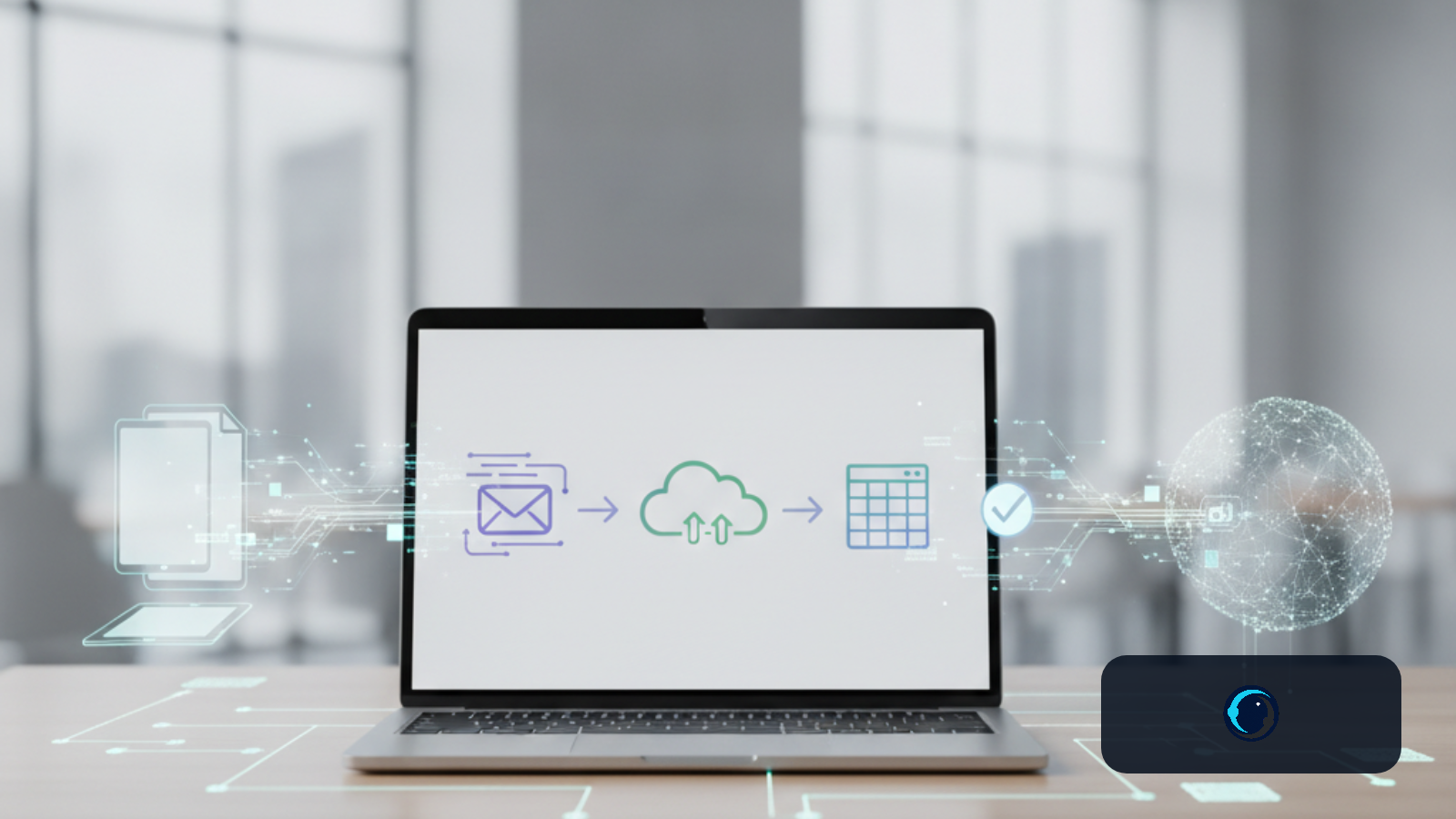
This workflow automatically processes invoices received via Gmail, extracts key information from PDF attachments, and records it in a Google Sheet.
Can I save invoice PDFs from Gmail to Google Drive automatically?
Yes, this workflow is designed to download PDF attachments from specific Gmail emails and upload them to a designated folder in your Google Drive.
What information can be extracted from invoices using this automation?
The workflow extracts details such as invoice date, description, total price, and creates a direct link to the saved file in Google Drive, which it then adds to a Google Sheet.
Does this workflow mark processed emails as read?
Yes, after successfully processing an invoice and saving its data, the workflow marks the original email in Gmail as read.
Overview
This n8n workflow automates the handling of incoming invoices, helping you manage financial documents more efficiently. It monitors your Gmail for new emails containing attachments, extracts key data from PDF invoices, saves these files to a specified Google Drive folder, and then records the extracted information into a Google Sheet. Finally, it marks the processed email as read in Gmail.
What This Workflow Does
The primary purpose of this workflow is to simplify the process of receiving and organizing invoices. Instead of manually downloading attachments, extracting details, and entering them into a spreadsheet, this automation takes over. When an email arrives in your Gmail inbox with a PDF attachment that appears to be an invoice, the workflow springs into action. It identifies the attachment, uploads it to Google Drive, renames it for clarity, and then moves it to a designated folder. At the same time, it uses artificial intelligence to read the invoice content and pull out specific data points like the invoice date, a description, and the total price. This extracted data, along with a direct link to the saved invoice file, is then added as a new row in your chosen Google Sheet. The original email is marked as read, ensuring you don't process the same invoice twice.
How It Works
This automation operates through a series of connected steps:
Gmail Trigger
The workflow starts by continuously monitoring your Gmail inbox for new, unread emails. It is configured to download any attachments found in these emails.
Conditional Check for Invoices
An "If" node then checks if the incoming email contains attachments and if its content type suggests a multipart message, which often indicates an email with files. This helps filter for emails likely to contain invoices.
Upload PDF to Google Drive
If the email passes the check, the workflow uploads the detected PDF attachment directly to your Google Drive. It specifically looks for PDF files among the attachments.
Rename and Organize in Google Drive
After uploading, the file is renamed using the email's subject line and the current date, creating a consistent naming convention (e.g., "Subject_invoice_YYYY-MM-DD.pdf"). The renamed file is then moved to a specific folder within your Google Drive, which you define during setup.
Mark Email as Read
Once the invoice PDF is successfully saved and organized in Google Drive, the original email in your Gmail inbox is marked as read. This prevents the workflow from reprocessing the same email and helps keep your inbox tidy.
Download File for Data Extraction
The workflow then downloads the newly saved PDF from Google Drive. This step prepares the file for text extraction.
Extract Text from PDF
An "Extract from File" node processes the downloaded PDF, converting its content into plain text. This text is then ready for analysis by an AI model.
Apply Data Extraction Rules with AI
Using a Large Language Model (LLM) from OpenAI (specifically, the gpt-4o model), the workflow applies a set of predefined rules to the extracted text. It identifies and pulls out specific pieces of information, such as the invoice date, a description (derived from the renamed file's subject), and the total price. It also generates a hyperlink to the invoice's location in Google Drive.
Structure AI Output
A "Structured Output Parser" node ensures that the data extracted by the AI model is formatted according to a specific JSON schema. This step is important for maintaining data consistency and preparing the information for direct entry into a spreadsheet.
Append Data to Google Sheets
Finally, the structured data—including the invoice date, description, total price, and the Google Drive link—is appended as a new row to your designated Google Sheet. This creates a centralized record of all processed invoices.
Prerequisites
To set up and run this workflow, you will need access to and credentials for several services:
Gmail Account: To monitor incoming emails.
Google Drive Account: To store invoice PDF files. You will need to identify the specific folder ID where you want to save the invoices.
Google Sheets Account: To record extracted invoice data. You will need the document ID of your target spreadsheet and the name or ID of the specific sheet within it.
OpenAI Account: To use the Large Language Model for data extraction. You will need an OpenAI API key.
You will also need to set up the following credentials within your n8n instance:
Gmail OAuth2: To allow n8n to access your Gmail account.
Google Drive OAuth2: To allow n8n to manage files in your Google Drive.
Google Sheets OAuth2: To allow n8n to write data to your Google Sheets.
Open Ai API: To connect to the OpenAI service for AI-powered data extraction.
Service-specific API credential (if configured): Depending on your n8n setup, you might need additional service-specific API credentials.
How Do You Set It Up?
Setting up this workflow involves configuring your credentials and specifying your target Google Drive folder and Google Sheet.
Set Up Your Credentials
Gmail OAuth2: In n8n, add a new Gmail OAuth2 credential. Follow the prompts to connect your Gmail account securely.
Google Drive OAuth2: Add a Google Drive OAuth2 credential. This will link your Google Drive account to n8n.
Google Sheets OAuth2: Set up a Google Sheets OAuth2 credential to enable n8n to interact with your spreadsheets.
Open Ai API: Add an OpenAI API credential. You will need to paste your OpenAI API key into the designated field.
Configure Google Drive Folder
Locate the "Setup1" node in the workflow. Here, you will find a field for url_to_drive_folder. Replace the placeholder value with the actual ID of the Google Drive folder where you want to store your invoice PDFs. You can find this ID in the URL of your Google Drive folder (e.g., https://drive.google.com/drive/folders/YOUR_FOLDER_ID).
Configure Google Sheets Document
In the "Append to Reconciliation Sheet" node, you need to specify your target Google Sheet. Provide the Document ID of your spreadsheet and the name or ID of the specific sheet within that document where the invoice data should be added.
Customize Data Extraction (Optional)
If your invoices have different data points you wish to extract, or if you want to change the output format, you can adjust two nodes:
"Structured Output Parser" node: Modify the JSON schema to define the exact fields and their data types you expect the AI to extract.
"Apply Data Extraction Rules" node: Update the prompt text to guide the AI on what information to look for and how to format it. For example, you can add or remove fields like "Invoice date," "Invoice Description," "Total price," or "Fichero."
Ready to automate?
The complete installation and configuration are already prepared for your workspace. Activate the preconfigured workflow on N8nPort with one click.
Customization Ideas
This workflow offers several points for customization to better fit your specific needs:
Refine Email Filtering: You can modify the "Gmail Trigger" or the "Only invoice mails with attachments" node to apply more specific filters, such as searching for particular keywords in the email subject or sender address, to ensure only relevant emails are processed.
Dynamic Folder Selection: Instead of a fixed Google Drive folder, you could introduce logic to select different folders based on criteria like the invoice sender, date, or amount.
Additional Data Fields: Expand the "Structured Output Parser" and "Apply Data Extraction Rules" nodes to extract more details from your invoices, such as vendor name, itemized lists, tax amounts, or payment terms.
Alternative Storage: While currently set up for Google Sheets, the extracted data could be sent to other accounting software, CRM systems, or databases by adding or replacing the final data storage node.
Notification System: Integrate a notification node (e.g., Slack, email, Microsoft Teams) to alert you when an invoice has been successfully processed or if an error occurs.
Limits
This workflow has a few limitations to be aware of:
Attachment Processing: The workflow is designed to process the first or second attachment in an email if it's a PDF. It may not correctly handle emails with multiple PDF attachments or if the invoice is not one of the first two files.
Data Extraction Accuracy: The accuracy of the data extracted by the AI model (OpenAI's GPT-4o) can vary depending on the invoice's layout, format, and the quality of the text extracted from the PDF. Scanned or image-based invoices may yield poor results.
Email Filtering: The initial email filter is broad, checking for unread emails with any attachment. This might cause the workflow to trigger on non-invoice emails, though it will likely fail at later stages if no PDF is found. For more precise targeting, you may need to add more specific filters (e.g., by sender or subject line).
Error Handling: The workflow has basic retry mechanisms on some nodes but lacks detailed error handling. If a critical step fails (e.g., an API is temporarily down), the workflow might stop, and the email will be left as unread, causing it to be re-processed on the next run. If it fails after marking the email as read, it won't be processed again automatically.
Troubleshooting
If you encounter issues with the workflow, here are a few steps to help you troubleshoot:
Workflow not starting: Ensure your Gmail Trigger node has valid credentials and is activated. Check that the emails you expect to be processed are marked as "unread" and contain attachments.
Incorrect data in Google Sheets: If the extracted data is inaccurate, review the prompt in the "Apply Data Extraction Rules" node. You may need to adjust it to better suit your specific invoice formats. Also, check the quality of the PDF; text-based PDFs work best.
Files not appearing in Google Drive: Verify your Google Drive credentials. Double-check that the Folder ID in the "Setup1" and "Move to the correct folder1" nodes is correct and that you have write permissions for that folder.
Errors in the execution log: Check the n8n execution logs for specific error messages. Common issues include expired credentials, incorrect API keys, or permissions issues with Google services. Re-authenticating your credentials often resolves these problems.
What Should You Check Before Activation?
Before activating your workflow, it is helpful to perform a few checks to help ensure it runs as expected:
Credential Verification: Double-check that all required credentials (Gmail, Google Drive, Google Sheets, OpenAI) are correctly set up and active in your n8n instance.
Google Drive Folder ID: Confirm that the Google Drive folder ID entered in the "Setup1" node is accurate and points to the correct destination folder.
Google Sheets Details: Verify that the Google Sheet Document ID and the Sheet Name in the "Append to Reconciliation Sheet" node are correct and that the sheet exists.
Data Extraction Rules: Review the JSON schema in the "Structured Output Parser" and the prompt in the "Apply Data Extraction Rules" node. Make sure they align with the data you want to extract from your invoices and the column headers in your Google Sheet.
Test with Sample Data: Consider sending a test email with a sample invoice PDF to your Gmail account to observe the workflow's behavior and confirm that data is extracted and recorded correctly.
Frequently Asked Questions
How does this workflow identify invoice emails?
The workflow uses a "Gmail Trigger" to monitor for unread emails with attachments. An "If" node then checks for specific content types to help confirm the presence of an attachment, filtering for emails likely to contain invoices.
Can I use a different AI model for data extraction?
This workflow is configured to use OpenAI's gpt-4o model for data extraction. While n8n supports various LLMs, this specific workflow uses the OpenAI model as designed.
What happens if an email has multiple attachments?
The workflow is designed to process PDF attachments. It attempts to identify and use the first PDF attachment found in the email for upload and data extraction.
Can I save invoices to different Google Drive folders?
As configured, the workflow saves all processed invoices to a single, predefined Google Drive folder. You can customize the workflow to include logic for dynamic folder selection based on your specific needs.
Does the workflow delete the original invoice email?
No, the workflow does not delete the original email. Instead, it marks the email as "read" in your Gmail inbox after successfully processing the invoice.
Source and Next Steps
This workflow was originally shared by the n8n community. You can find the original workflow and more details at the following link: Invoices from Gmail to Drive and Google Sheets on n8n.io.
To explore further, consider adapting this workflow to integrate with other financial tools, automate reconciliation processes, or generate reports based on the collected invoice data.
Activate this workflow on N8nPort
Choose your workspace and activate the fully prepared automation with one click.