# Generate Google Maps Leads for $10: The Fastest n8n Automation Setup
Finding local business leads should not require hours of manual Google Maps research or an expensive scraping platform. With n8nPort and a ready-made n8n workflow, you can launch a repeatable Google Maps lead-generation system for around $10 and start building a targeted lead pool in about three minutes once your instance and credentials are ready.
The workflow collects Google Maps data, prepares and filters records, removes duplicates, and writes the results to Google Sheets. You do not need to download a JSON file or manually import a workflow: n8nPort installs the selected workflow directly into your managed n8n instance.
## What this Google Maps n8n workflow does
The Generate Leads with Google Maps - AlexK1919 workflow is organized into practical sections:
- Settings: centralizes the spreadsheet and API-related configuration.
- Data Prep: prepares search terms, locations, and input records before processing.
- Google Maps API: sends the configured searches and receives business data.
- Filtering: keeps records that match the intended search and data requirements.
- Duplicate removal: prevents the same business from being written repeatedly.
- Wait and retry logic: spaces requests and checks processing status when needed.
- Google Sheets updates: stores results and updates processing information.
The result is a lead workflow that can be tested manually first and then activated for recurring searches.
## What you need before starting
Prepare these items before installing the workflow:
1. An n8nPort account and an available n8n instance.
2. A Google account with access to Google Sheets.
3. The Google Maps/API access required by your workflow configuration.
4. A spreadsheet for search inputs and lead outputs.
5. Search categories and locations, such as dentists in Austin, Texas or roofing contractors in London, UK.
Keep API keys and credentials inside n8n’s credential system. Never publish them in screenshots, videos, workflow exports, or blog examples.
## Step 1: Create an n8nPort instance
Start from the [n8nPort dashboard](/) and create a new managed n8n instance.
1. Sign in to n8nPort.
2. Open the instance creation area.
3. Enter an instance name and choose the available configuration.
4. Start provisioning.
5. Wait until the instance status changes to succeeded.
Provisioning runs in the background. A queued or running status means the request is being processed; it is not automatically an installation failure.
When the instance is ready, use Open to enter the managed n8n workspace through the platform. Customers do not need to create a separate n8n password for this managed access flow.
<
p style="text-align: start;">## Step 2: Install the workflow from the n8nPort catalog
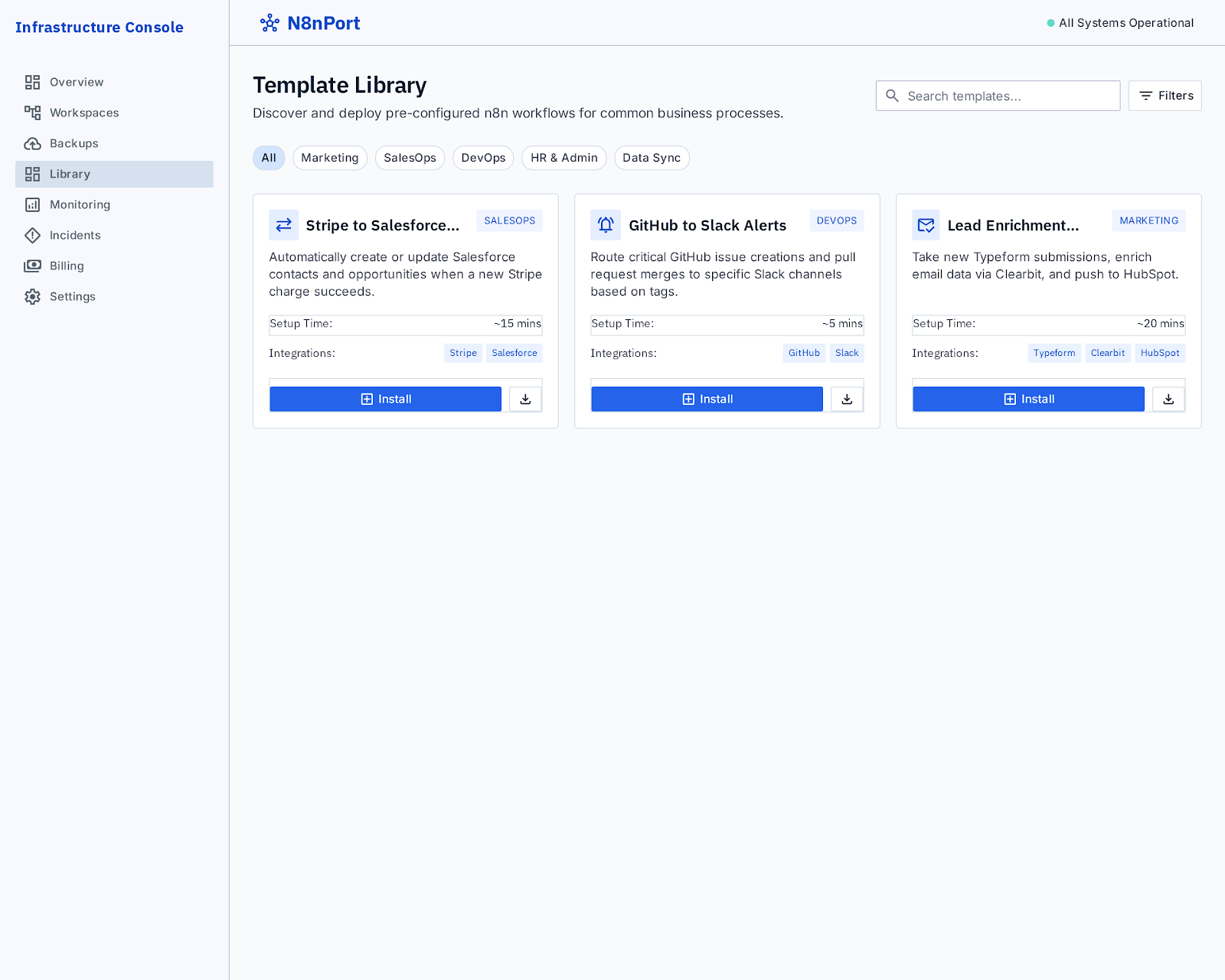
Open [Browse n8n workflow templates](/templates) and find the Google Maps lead-generation workflow.
1. Open the workflow details.
2. Select the target n8nPort instance.
3. Click Install.
4. Wait for the installation activity to complete.
5. Open the workflow list inside the instance.
The installation is asynchronous:
- Queued means the installation request is waiting to be processed.
- Installed means the workflow has been placed in the selected n8n instance.
This one-click installation is the key advantage over manually downloading a workflow JSON file and importing it yourself.
<
p style="text-align: start;">## Step 3: Open and configure the installed workflow
Open the installed workflow and review the canvas. Before running it, connect the required credentials.
### Connect Google Sheets
Open the Google Sheets nodes and select or create the credential that has access to the spreadsheet. Confirm that the selected account can read the input sheet and write to the output sheet.
### Configure Google Maps/API access
Open the API-related configuration in the workflow and provide the required credential through n8n’s credential fields. Use the API provider’s current documentation for enabling the relevant services and checking quota settings.
Do not hardcode secrets into visible node text when a credential field is available.
## Step 4: Prepare your lead search inputs
Use a simple input sheet containing the search keyword, location, and processing status. For example:
| Keyword | Location | Status |
|---|---|---|
| Dentists | Austin, TX | Pending |a
| Roofing contractors | London, UK | Pending |
| Commercial electricians | Miami, FL | Pending |
The output sheet can contain business name, phone number, website, address, rating, review count, place ID, and processing date, depending on the fields configured in your workflow.
## Step 5: Run a first test
Use the Execute workflow button at the bottom of the n8n canvas.
During the test, check that:
1. The input values are read correctly.
2. The Google Maps/API request returns data.
3. Filtering keeps the intended records.
4. Duplicate checks behave as expected.
5. Results are written to Google Sheets.
6. Status information is updated after processing.
Run a small search first. This makes it easier to verify credentials, spreadsheet permissions, fields, and API responses before expanding the lead pool.
## Step 6: Activate recurring lead generation
After the manual test succeeds, configure the workflow’s trigger and activate it from the n8n editor.
1. Confirm that the search inputs and credentials are correct.
2. Review the trigger or schedule settings already present in the workflow.
3. Save the workflow.
4. Turn the workflow to Active.
5. Check the first scheduled execution.
Manual execution is useful for testing. Activation allows the workflow to continue processing according to its configured trigger and schedule.
## Common issues
### The instance is still queued
Provisioning and template installation are background jobs. If the status remains queued for an unusually long time, record the instance name, workflow name, timestamp, and latest activity status before contacting support.
### The workflow is installed but does not run
Check the selected credentials, spreadsheet permissions, API access, and the first failing node’s output.
### Google Sheets returns a permission error
Reconnect the correct Google credential and confirm that the account can edit the target spreadsheet.
### The API returns no useful records
Try a narrower keyword and a more precise location. Also check the API response, request parameters, and quota status.
### Duplicate leads appear
Review the filtering and duplicate-removal steps, then confirm that the comparison field is populated consistently across existing and new records.
## Responsible use
Use Google Maps data and APIs according to the applicable provider terms, local privacy rules, and outreach regulations. Avoid abusive request volumes, respect quotas, and monitor usage as your searches scale.
## Conclusion
You do not need to build a lead-generation workflow from scratch. With n8nPort, you can create a managed n8n instance, install the Google Maps workflow directly from the catalog, connect your credentials, and begin testing a targeted lead pool in minutes.
[Create an n8nPort instance](/) and [open the Google Maps workflow](/templates/google-maps-lead-generation) to start.
## Frequently asked questions
### Do I need coding skills?
No. The workflow is pre-built. You mainly configure credentials, spreadsheet inputs, and the search parameters.
### Do I need to download the workflow?
No. n8nPort can install the selected workflow directly into the target managed n8n instance.
### Can I search different industries and locations?
Yes. Update the input keywords and locations in the spreadsheet, then run the workflow with the relevant API configuration.
### Can I test it before activating it?
Yes. Use Execute workflow for a controlled test, then activate the workflow after confirming the output.
### Where should I look when something fails?
Start with the first failed node, its output, the credential connection, spreadsheet permissions, and the latest n8nPort activity status.
## SEO metadata
- Meta title: Generate Google Maps Leads for $10: Fastest n8n Automation Setup
- Meta description: Learn how to install a Google Maps lead-generation workflow in n8nPort, connect Google credentials, build a lead pool, and activate automated searches.
- URL slug: generate-google-maps-leads-n8n
- Primary keyword: n8n Google Maps lead generation
- Secondary keywords: Google Maps n8n workflow, n8n lead generation automation, Google Maps leads, local business lead generation, n8nPort workflow templates